How to Set Auto Reply on an Instagram Business Account
Instagram auto reply works on DMs only. Meta Business Suite handles Instant Reply and Away Message, while comments need a separate tool.
Can Instagram Auto-Reply to Comments, or Only to DMs?
Instagram's native auto-reply tools only work on direct messages. They do not touch public comments or Story replies. Inrō's breakdown of Instagram's built-in automation is explicit on this point: native auto replies do not cover comments or Story replies, only direct messages someone sends you. If your actual problem is a comment section flooding with "price?" under a Reel, Meta's own automation tools were never built to reach it.
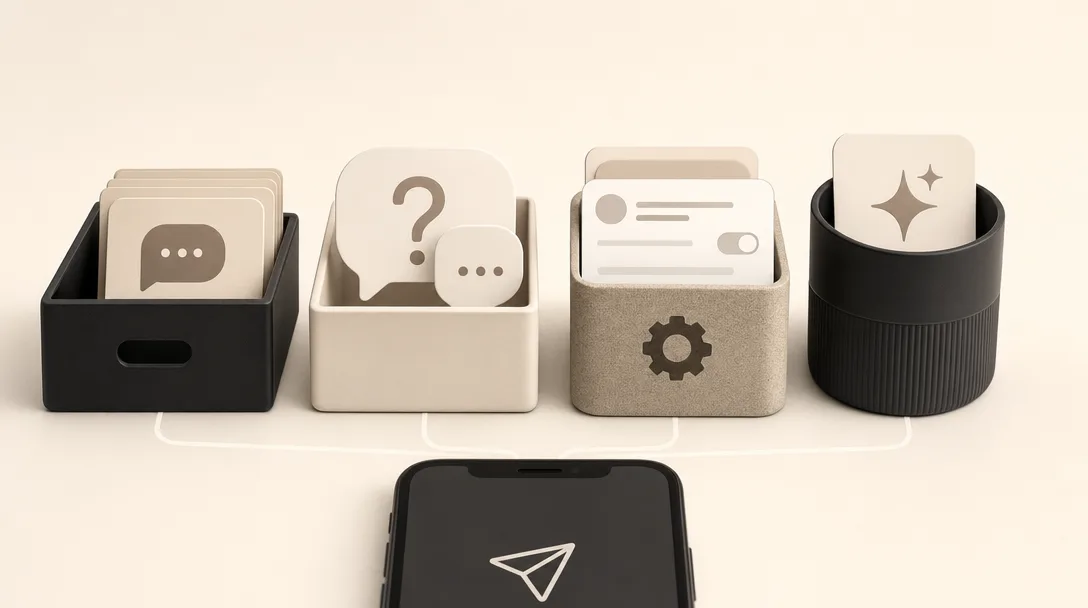
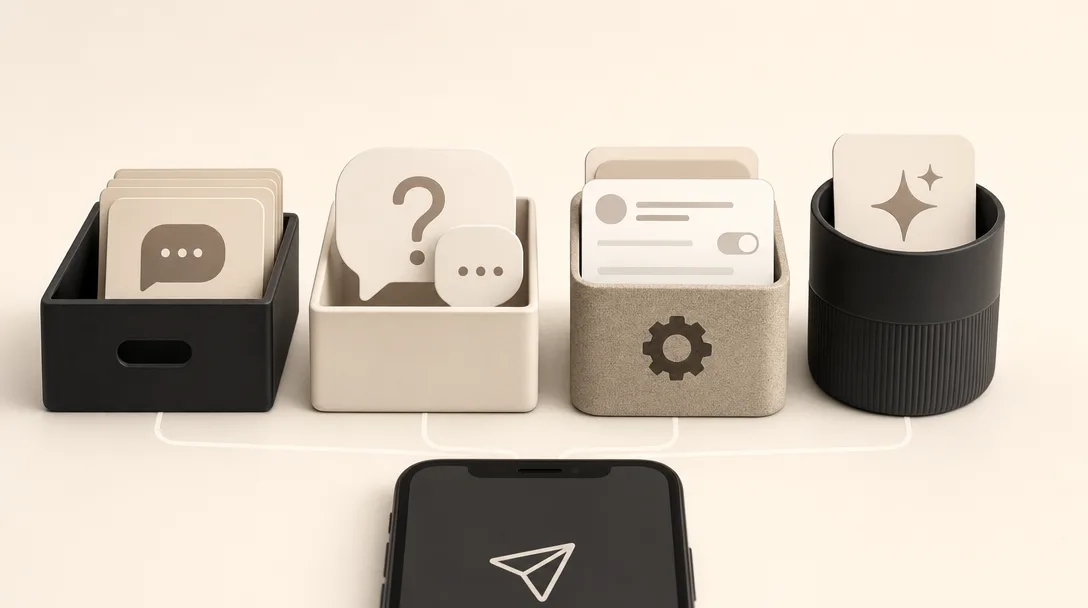
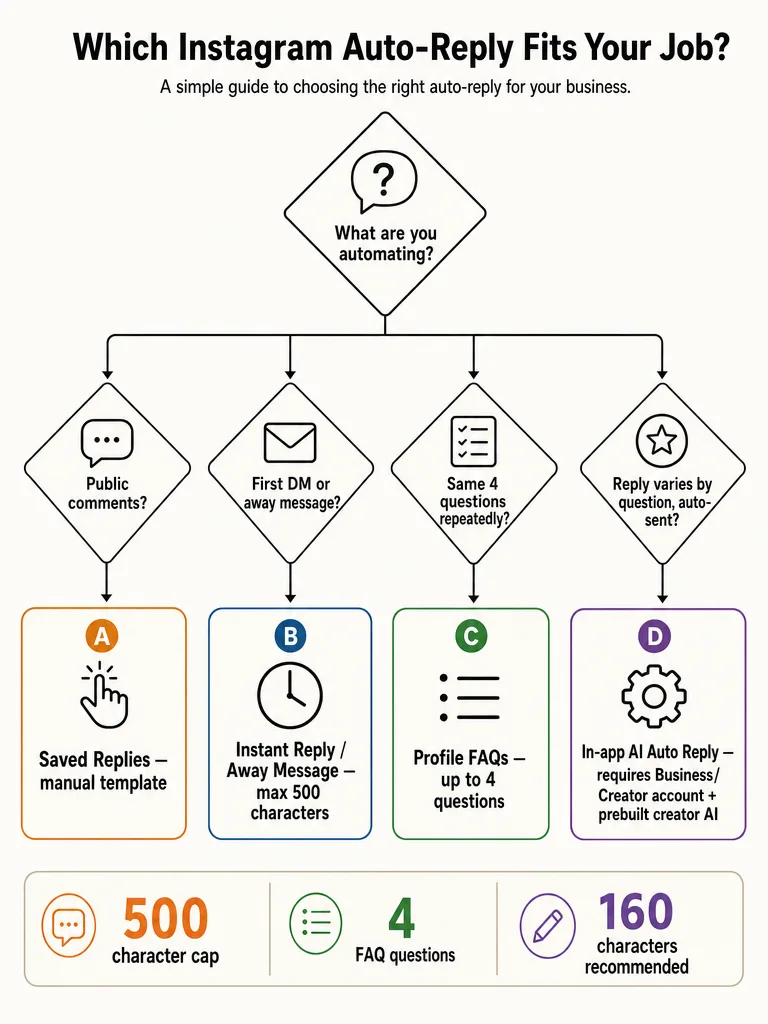
Instagram auto reply, as a term, covers a specific set of features inside a professional Instagram account: Instant Reply and Away Message in Meta Business Suite, Saved Replies, profile FAQs, and the newer in-app AI auto replies. Every one of those lives inside Direct Messages, not the public comment thread under a post.
That gap is why so many people searching for "Instagram auto reply" end up disappointed. They want their comments handled. Native Instagram gives them a DM tool instead. If comments are the actual target, you're looking at what Meta allows for comment automation, which is a separate system with its own rules.
Business and Creator Accounts Are Required for Instagram Auto Reply
Every native Instagram auto-reply feature requires a professional account first, no exceptions. Canty Digital confirms personal accounts have no access to messaging automations at all, so switching to Business or Creator status is the mandatory first step before Instant Reply, Away Message, Saved Replies, or AI auto replies will work at all.
Switching the account type isn't the only gate. Inrō points to a second requirement that trips people up even after they've converted: Instagram Business or Creator accounts need messaging access explicitly granted to connected tools. That toggle lives inside Instagram's own messaging settings, and Meta Business Suite has nothing to work with until it's switched on.
Check both before troubleshooting anything else: account type, then messaging access. Most setup failures trace back to one of those two.
How Do You Set Up Instant Reply and Away Message in Meta Business Suite?
Meta Business Suite runs Instagram's two free native DM automations: Instant Reply, which fires on someone's first message to you, and Away Message, which follows a schedule you set for off-hours. Inrō confirms Instagram gives you these 2 free auto replies through Meta Business Suite, and both send identical text to everyone who triggers them.
The setup path below combines the steps shown in a Reel demonstration and Trengo's written guide:
- Open Meta Business Suite and log in with the account linked to your Instagram profile.
- Go to Inbox, then Automations.
- Click Create Automation, choose Instant Reply, select Instagram as the platform, and write your message.
- Repeat the process for Away Message, and set the schedule for the hours you want it active.
- Save, then check that the toggle next to each automation is switched on. Saving does not activate it automatically.
Two limits matter here. Inrō notes the message is capped at 500 characters, and Canty Digital recommends keeping the Instant Reply text under 160 characters so it doesn't read like a wall of text a commenter skims past. Since the message never changes based on what was asked, shorter and generic works better than trying to cram in every answer.
Saved Replies vs Auto Replies: The Real Difference
Saved Replies inside Instagram's DM inbox work as manual templates, not automation: you type a shortcut to insert pre-written text into an open conversation, and nothing sends unless you personally choose it. Canty Digital describes this as fundamentally different from Instant Reply, Away Message, or AI auto replies, all of which fire on their own without anyone present.
That's a meaningfully different job than the other three tools, and the confusion between them is common enough that it's worth laying out side by side.
| Feature | Triggers automatically? | Requires you to be active? | Where it lives |
|---|---|---|---|
| Saved Replies | No | Yes, you insert it manually | Instagram DM inbox |
| Instant Reply | Yes, on first message | No | Meta Business Suite |
| Away Message | Yes, on a schedule | No | Meta Business Suite |
| AI auto replies | Yes, per selected audience | No | Instagram app, Your AI |
Saved Replies save typing time; only the other three actually run without you. If your goal is fewer manual actions during a launch, Saved Replies won't get you there on their own, they still need a person clicking through the inbox.
Instagram Profile FAQs Cap Out at 4 Questions
Instagram limits profile FAQs to four questions, according to Canty Digital, and each one appears as a tappable button the moment someone opens a new DM with your account. You can attach an optional automated response to each button, which makes FAQs useful for a handful of static questions that never change from post to post.
FAQs work best for the questions that stay fixed: shipping timeline, general pricing tier, booking link, business hours. They're not a fit for anything that varies by post, launch, or offer, since the same four buttons show up in every new conversation regardless of what the person was looking at when they messaged you.
If your repetitive questions map cleanly to four fixed answers, FAQs cost nothing to set up and need no ongoing maintenance. If your comment volume comes from different posts asking different things, an FAQ can't flex to match.
How Do You Turn On AI Auto Replies for Instagram?
Instagram's AI auto replies let a creator AI respond automatically to DMs from a chosen audience, but the feature has real prerequisites before the toggle even appears. Instagram's Help Center states the feature is being gradually introduced, is only available on the Instagram mobile app, and requires three things already in place: a professional account, a creator AI already built with Meta AI Studio, and agreement to the Instagram Creator AI Terms.
Once those are met, the in-app path is:
- Open the Instagram app, go to your profile, and tap Professional dashboard.
- Under Your tools, tap Your AI.
- Tap the gear icon to open Your AI Settings.
- Choose your audience: anyone you don't follow, followers you don't follow back, or only people you choose.
- Turn auto replies on for that audience.
Instagram's documentation is specific about scope: your AI only responds to messages and message requests from the audience you selected, and Instagram builds in safeguards meant to keep responses within its Community Guidelines. This is a DM feature built around a creator AI persona, not a tool for handling public comment volume on a specific post.
Meta Business Suite Automation vs Instagram AI Auto Replies: Which Fits Your Account?
Picking between Meta Business Suite automation and Instagram's AI auto replies comes down to setup effort versus flexibility. One requires almost nothing beyond a professional account; the other needs a creator AI built in Meta AI Studio before it does anything at all. Getting this choice backward wastes setup time and still leaves your comment section untouched either way.
| Question | Meta Business Suite (Instant Reply / Away) | Instagram AI Auto Replies |
|---|---|---|
| Setup effort | Low, no prerequisites beyond account type | High, needs a creator AI built first |
| Message varies by question? | No, same text to everyone | Can respond differently per conversation |
| Availability | Broadly available now | Gradually rolling out, mobile app only |
| Covers comments? | No, DM only | No, DM and message requests only |
| Audience targeting | None | Yes, by follow status or chosen list |
If you just need a first-touch acknowledgment while you're asleep, Instant Reply and Away Message take minutes and need nothing built beforehand. If you want a persona that carries a conversation, AI auto replies do more, but only after you've built the creator AI and agreed to Instagram's Creator AI Terms. Neither one reaches your public comment section either way.
Why Do Native Auto Replies Send the Same Message to Everyone?
Meta Business Suite's Instant Reply and Away Message can't tell what someone actually asked. Inrō is direct about this: both native automations send the same text to everyone, and they cannot respond to what the person actually wrote. Someone asking about pricing and someone asking about shipping get the identical canned line.
That's fine for a single generic acknowledgment. It breaks down fast during a launch, a viral Reel, or a product drop, when the questions flooding in are genuinely different: price, sizing, booking availability, cancellation policy, enrollment prerequisites. A one-size message either ignores most of what people asked or forces them into a DM just to get an answer a smarter reply could have given up front.
That's the gap native Instagram tools were never built to close: something that reads what a post actually shows before answering, which is what pulls tools like ReplyMagic outside the DM-only box Meta ships by default.
Why Isn't Your Instagram Auto Reply Sending?
The most common cause is the messaging access toggle in Instagram getting switched off, which disconnects Meta Business Suite from your inbox entirely. Inrō lists this as the first thing to check when a native auto reply stops firing, before assuming anything is broken in Meta Business Suite itself.
The second most common cause is simpler: the automation was edited or re-saved but the toggle next to it reverted or was never switched back on. Saving a change to Instant Reply or Away Message does not automatically reactivate it. Inrō's fix sequence is worth following in order:
- Check the Instagram messaging access setting is still turned on for connected tools.
- Open Meta Business Suite, go to Inbox, then Automations.
- Confirm the specific automation, Instant Reply or Away Message, shows an active toggle, not just a saved message.
- If you recently edited the message, save again and re-check the toggle afterward.
If both checks pass and messages still aren't going out, the issue usually isn't the automation logic, it's one of those two switches sitting off somewhere in the chain.
When native tools reach their limit and comments start piling up faster than DMs, Get started with ReplyMagic to see comment replies that read the post first.
Frequently asked questions
Does Instagram's auto-reply work on comments, or just DMs?
Instagram's native auto-reply tools only work on direct messages, never public comments or Story replies. Instant Reply, Away Message, Saved Replies, profile FAQs, and AI auto replies all live inside Direct Messages, inside Meta Business Suite or the Instagram app. Handling public comment volume needs a separate tool: ReplyMagic uses Google Gemini to read each post's photo or video before drafting a reply, rather than firing the same generic message at everyone who comments.
What's the difference between Saved Replies and Instagram's auto-reply features?
Saved Replies are manual templates: you type a shortcut to insert pre-written text, and nothing sends unless you personally click it. Instant Reply, Away Message, and AI auto replies fire on their own without anyone present, triggered by a new DM, a schedule, or a chosen audience. Saved Replies cut typing time; the other three actually run without a person watching the inbox.
How many free auto-replies does Instagram give you through Meta Business Suite?
Meta Business Suite gives two free automations: Instant Reply, which fires on someone's first message, and Away Message, on a schedule you set. Both send identical text to everyone who triggers them, capped at 500 characters, though keeping Instant Reply under 160 characters reads better. Set them up under Inbox, then Automations, and confirm each toggle is switched on after saving: saving alone won't activate it.
Why isn't my Instagram auto-reply sending?
The most common cause is Instagram's messaging access toggle for connected tools getting switched off, which disconnects Meta Business Suite from your inbox entirely. Check that setting first, then confirm the specific automation: Instant Reply or Away Message: still shows an active toggle, not just a saved message. Editing and re-saving a message doesn't automatically reactivate it, so recheck the toggle every time you make a change.
How do you turn on Instagram's AI auto replies?
Turning on AI auto replies requires a professional account, a creator AI already built in Meta AI Studio, and agreement to Instagram's Creator AI Terms. From the Instagram app, open Professional dashboard, tap Your AI under Your tools, then the gear icon for Your AI Settings, and choose an audience: people you don't follow, non-mutual followers, or a chosen list. It's mobile-only and still rolling out gradually.
How many questions can Instagram's profile FAQ feature hold?
Instagram caps profile FAQs at four questions, each shown as a tappable button the moment someone opens a new DM with your account. You can attach an automated response to each button, which works well for fixed answers like shipping timelines or business hours. FAQs can't adapt to different posts or launches: the same four buttons appear in every conversation regardless of what prompted the message.